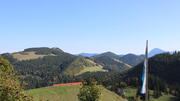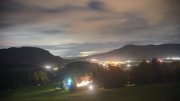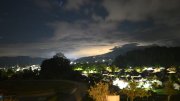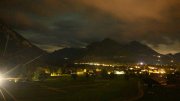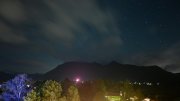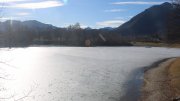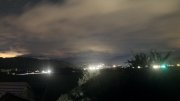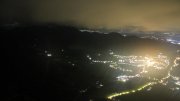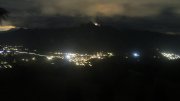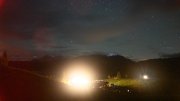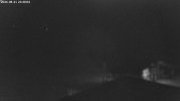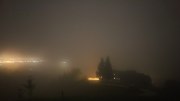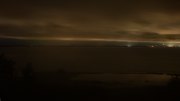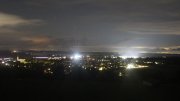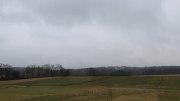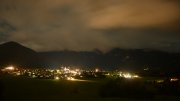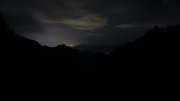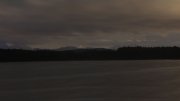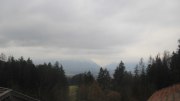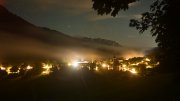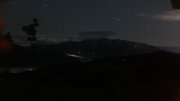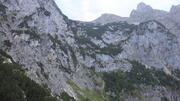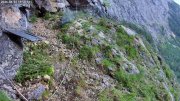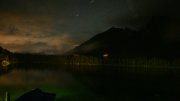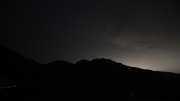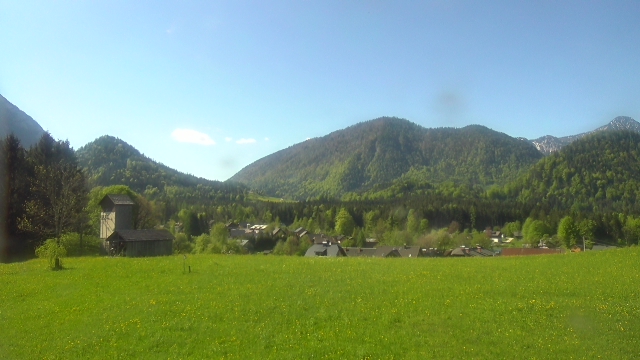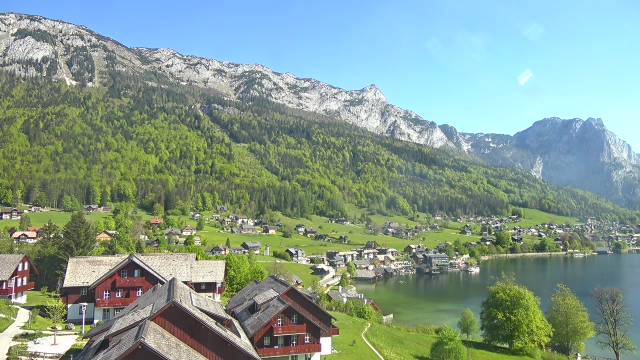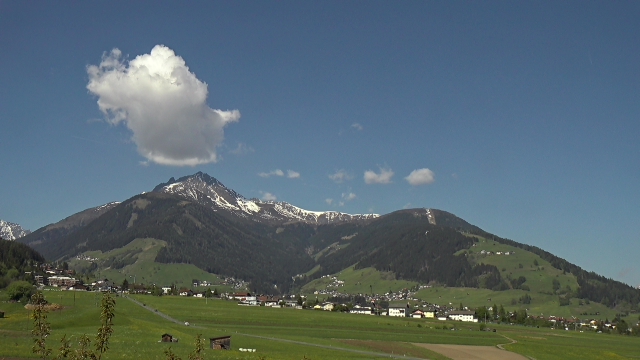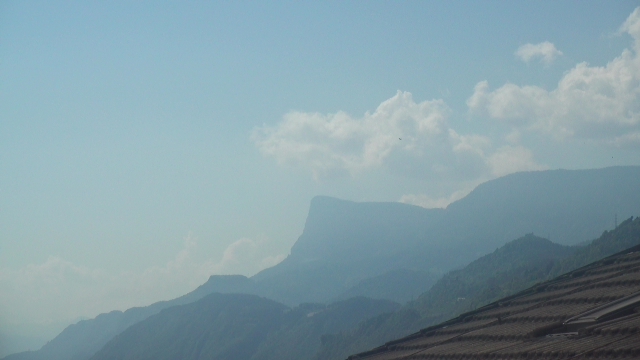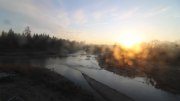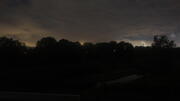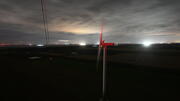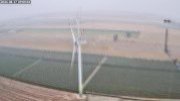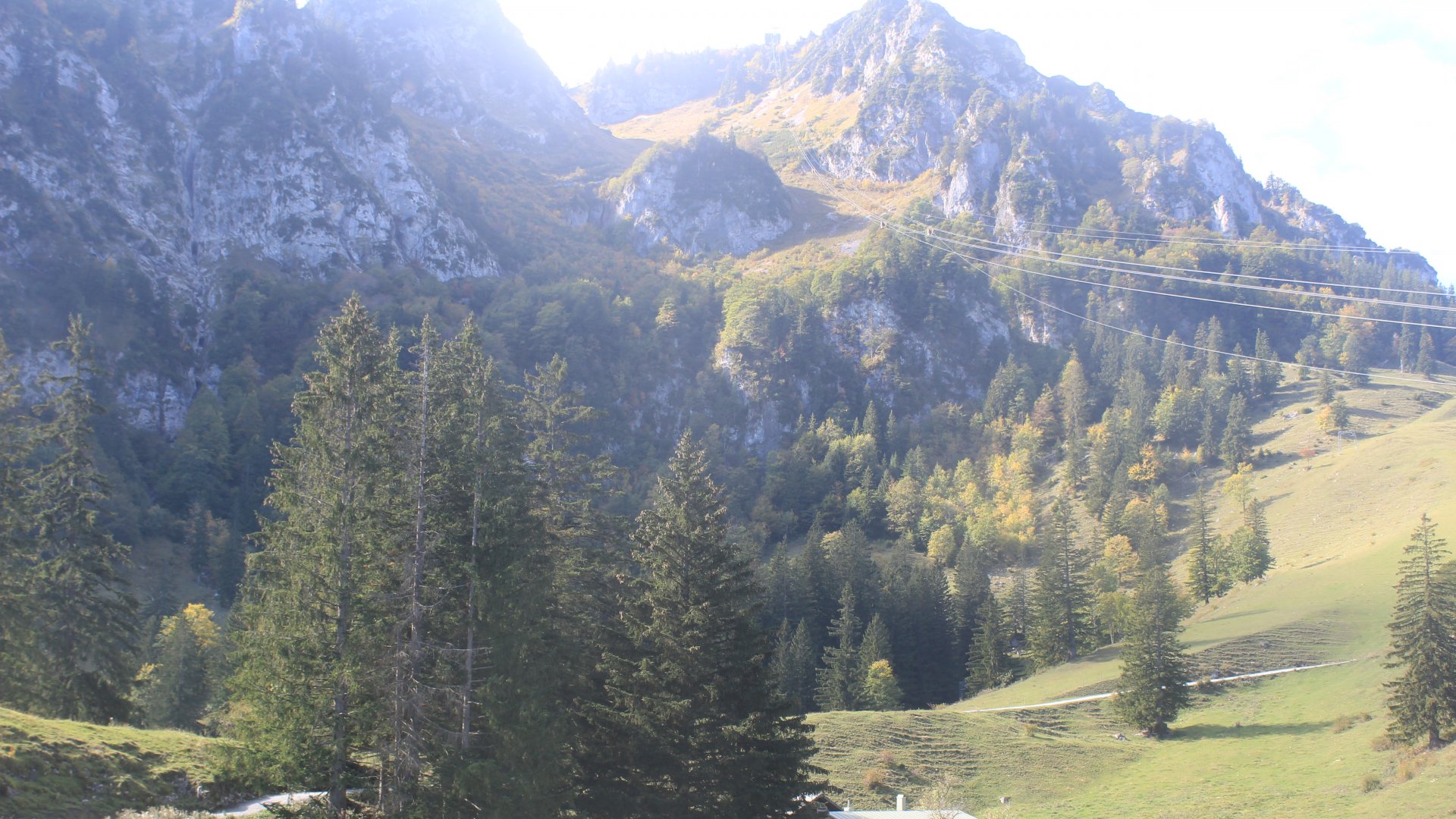
Hochfelln mid-station | View towards the summit
12:00 07.10.2026




Webcam Hochfelln mid-station
 Location on map (opens in a new tab)
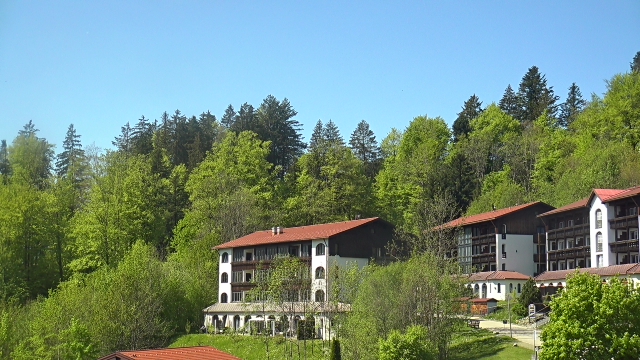
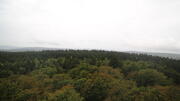
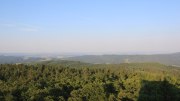
Motiv: Blick von der Hochfelln-Mittelstation über Bründling in Richtung Hochfellngipfel
Gebiet: Chiemgauer Alpen / Landkreis Traunstein (DE)
Standorthöhe: 1080 m
Ausrichtung: Westen
Aktivierungsdatum: 09.10.2016
Kamera: Canon EOS 1200 D + 18-55mm Kitobjektiv
Strom- und Internetversorgung: PoE
Gehäuseausführung: Kunststoffgehäuse
Webcam-Partner: Hochfellnseilbahnen
Weitere Informationen zur Fotowebcam Hochfelln-Mittelstation
Blick von der Mittelstation der Hochfelln-Seilbahnen (1080m) in Richtung Westen mit leicht nördlichen Einschlag zum Gipfel des Hochfellns (1674m). Die Kamera wurde am 09.10.2016 in bester Zusammenarbeit mit der Gemeinde Bergen und der Hochfellnseilbahn realisiert. Im mittleren Bildbereich ist die Skipiste zu erkennen, sowie die Bründling Alm auf etwa halber Höhe. Besonders im Winter dienen die hochauflösenden Bilder unter anderem auch zur besseren Beurteilung der Schneesituation. Die sehr stabile und schnelle Internetverbindung stammt vom Rauschberg (Zwischenstation Hochfellngipfel) und wurde von der Firma ruhnet aus Ruhpolding eingerichtet. Die Strom- und Internetversorgung der Webcam wird durch ein etwa 60 Meter langes Netzwerkkabel bewerkstelligt (PoE). Die Temperaturdaten werden von einem Sensor am Webcamgehäuse erfasst. Der Sensor ist ungeschützt und zeigt bei direkter Sonneneinstrahlung einen zu hohen Wert an. Für die Richtigkeit der Temperaturdaten kann daher keine Richtigkeit gewährleistet werden.Bilder des Kamerasystems
Best pictures webcam Hochfelln mid-station
Particularly noteworthy images can be marked via the 'Share & Tag' menu optionWeather data webcam Hochfelln mid-station
More data and custom time periods: Link to the dashboard (opens in a new tab)Compare Pictures Hochfelln mid-station


Hochfelln mid-station
Share: Webcam Hochfelln mid-station
Tag good picture
Clicking the "Mark" button adds the currently displayed image to the Best Images collection. This automatically creates a collection of high-quality images that are easy to locate. The marked images can be found both under the camera-specific Best Images menu item and in the combined collection for all cameras under Best of. To prevent the collection from becoming cluttered with too many similar images, we occasionally weed out the selection.
Should this image be included in the best of collection?For spam protection, please enter the following character combination into the text field:
Embed in your own website (live image)
You are welcome to embed the live feed from this webcam on another website until further notice, subject to certain conditions: The image must not be altered in any way (compressed, distorted, or otherwise modified). The image may be scaled down, but it must not be displayed larger than its original size (which would cause distortion). The hyperlink tag (href) covering the entire image must remain intact and must not be removed. The link must point either to the specific camera feed or to our homepage. Several live feeds in various resolutions are available for embedding:
180x101 pixel (Filename = '180.jpg')400x225 pixel (Filename = '400.jpg')
512x288 pixel (Filename = '512.jpg')
816x459 pixel (Filename = '816.jpg')
1200x675 pixel (Filename = '1200.jpg')
1920x1080 pixel (Filename = '1920.jpg')
3840x2160 pixel (Filename = '3840.jpg') -> not all Cameras!
Copy the following code and paste it into your own source code to embed this camera (using '1920.jpg' as an example here):
<a href="https://www.terra-hd.com/"><img src="https://www.terra-hd.com//img/current/1920.jpg"></a>Embed in my website (JavaScript player)
A JavaScript player is available alongside the live feed. It can be embedded using an iframe. The iframe automatically adjusts to the maximum available width (up to 1920 pixels). To embed this camera, copy the following code snippets into the source code:
	<iframe class="terrahd-player" width="100%" height="100%" scrolling="no"
	allowfullscreen="1" frameborder=0 src="https://www.terra-hd.com//player.php?header=1&partner=1">
	</iframe>
	<script>
	function playerResize() {
		var player = document.getElementsByClassName("terrahd-player");
		var width = player[0].offsetWidth*9/16;
		for(var i=0;i<player.length;i++)
			player[i].style.height = (width+((width<450)?145:95))+"px";
	}
	window.addEventListener("resize", playerResize); playerResize();
	</script>
Print, TV & Social media
Ideally, use the highest possible resolution: clicking the fullscreen button at the bottom right of the webcam image loads the image in full resolution. This image can be downloaded by right-clicking. The image source must always be cited when publishing in print or TV media.


Archive: Hochfelln mid-station